Your next bus,
before you leave.

Save two stops, filter bus services at each stop and view service routes on a map.

Illustrated home settings.

Features in detail

Home dashboard

Choose which cards appear, change their order and height, or start with a blank dashboard.
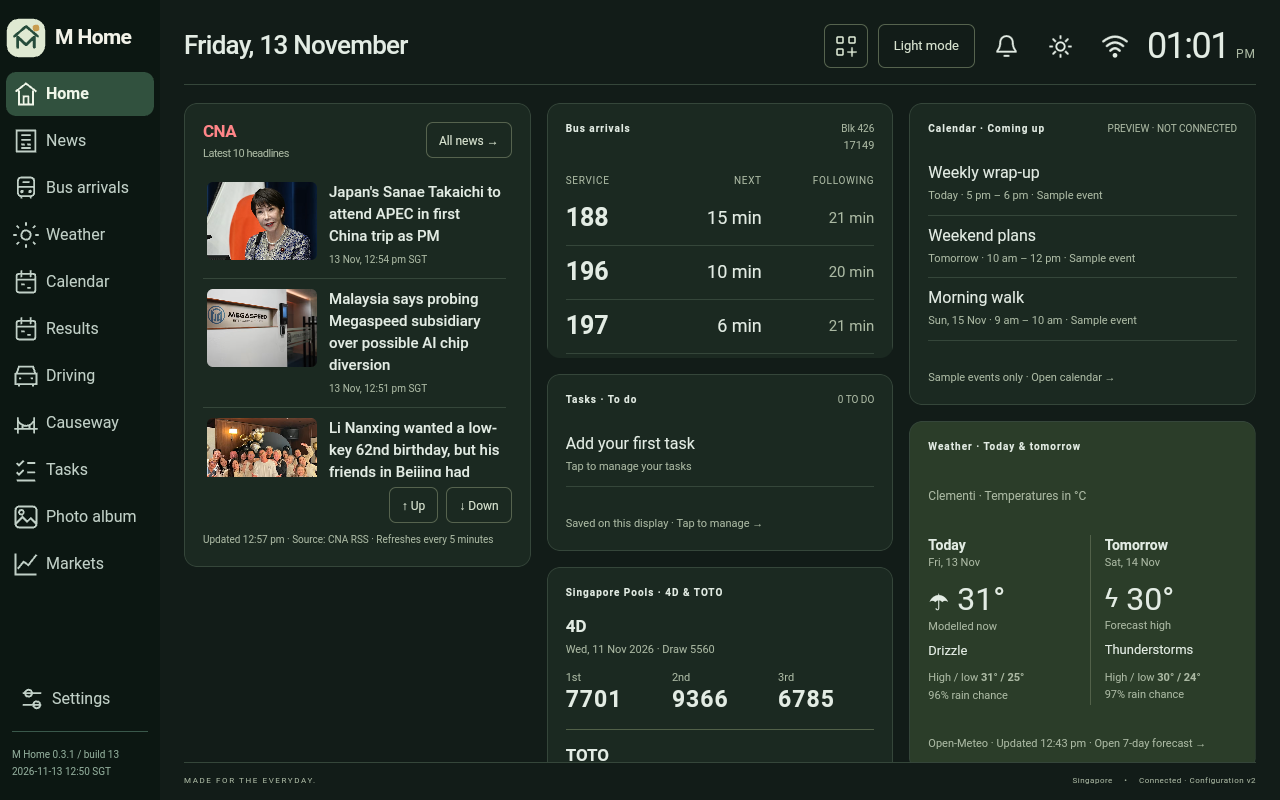
Home dashboard screen on the displayOn the display.

Singapore bus arrivals

Save two stops, filter bus services at each stop and view service routes on a map.
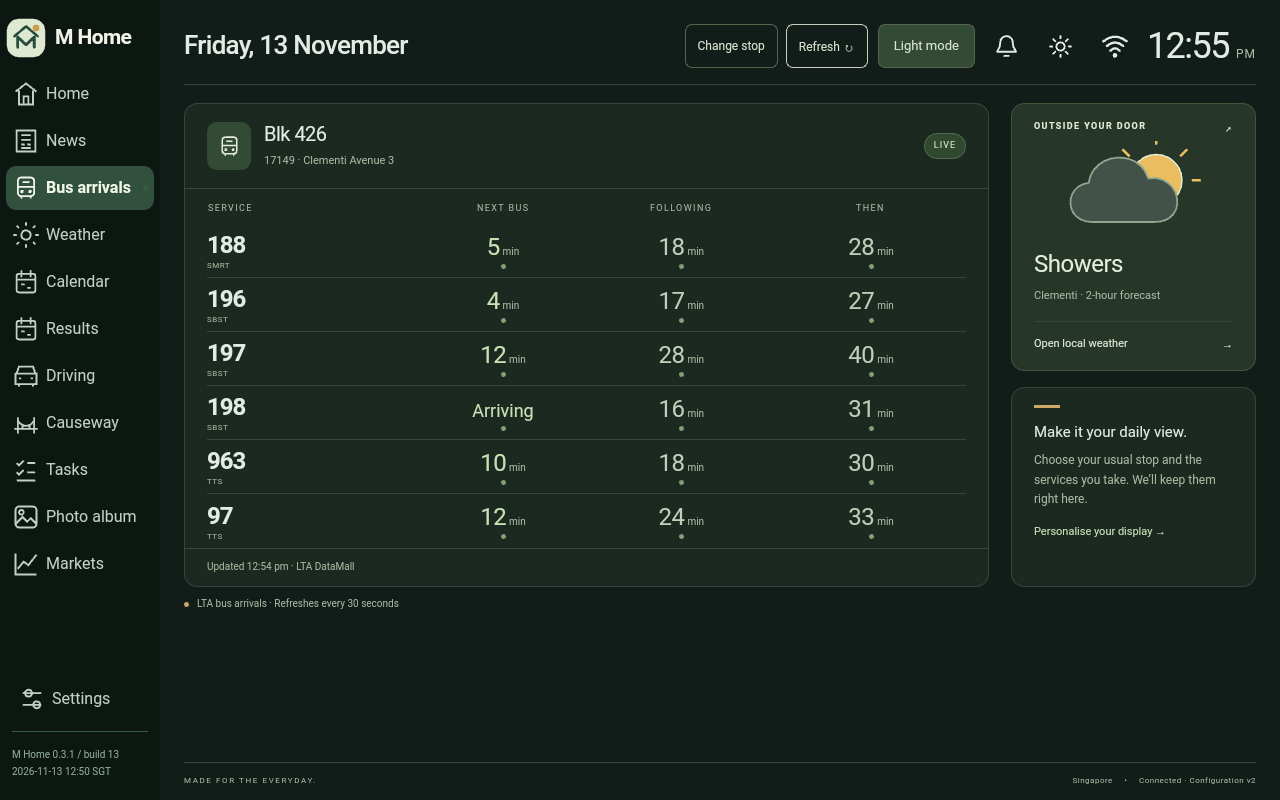
Singapore bus arrivals screen on the displayLive arrivals and load indicators require the LTA data service.

Weather

Choose your Singapore area and see local conditions and a seven-day forecast.
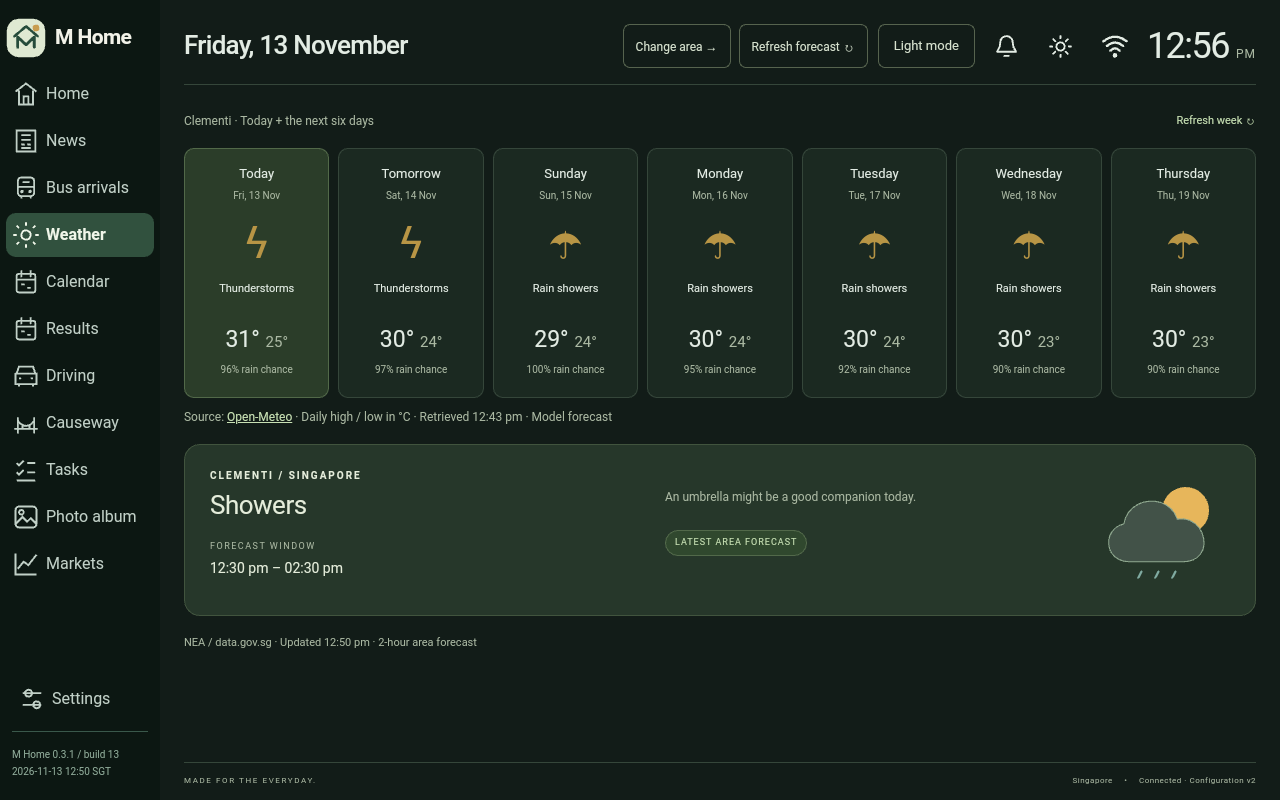
Weather screen on the displayRequires an internet connection for updated forecasts.

Driving

Save journeys and check route maps, road cameras and traffic alerts.
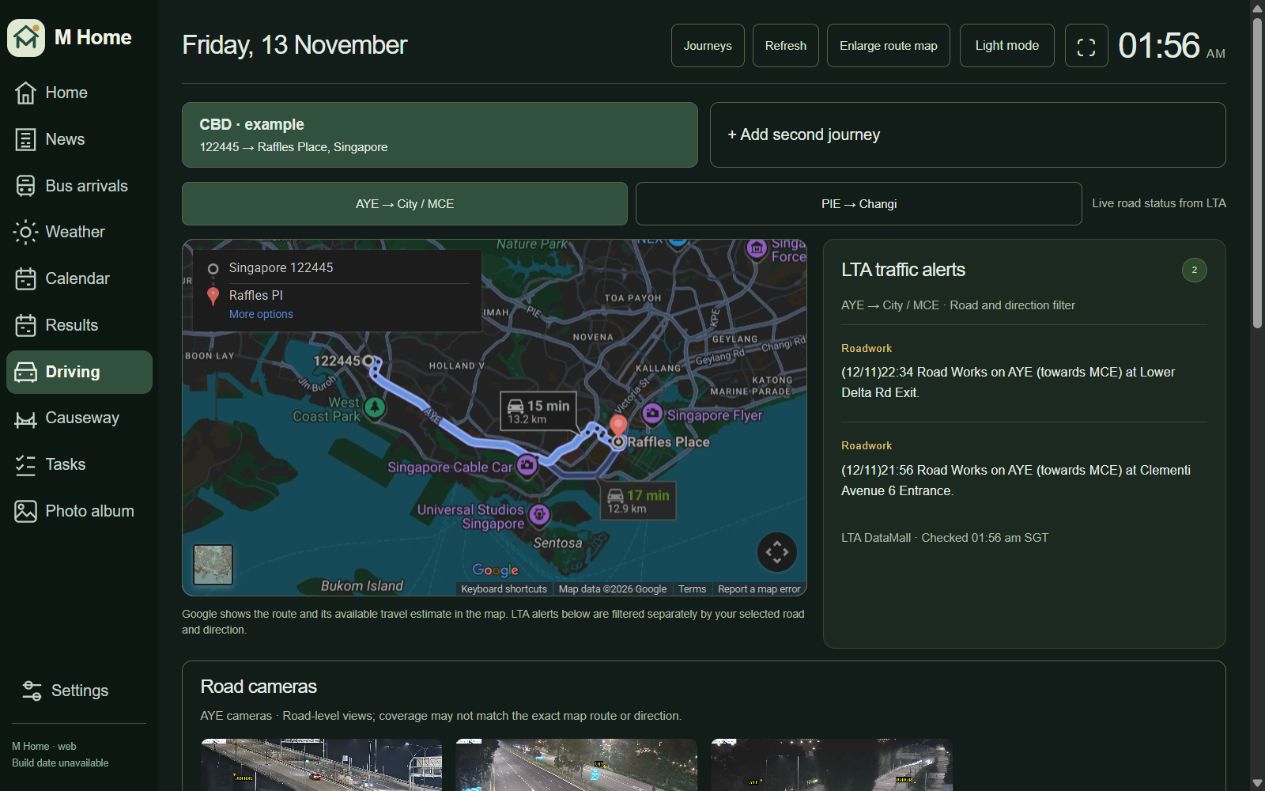
Driving screen on the displayLive traffic and route estimates depend on configured data providers.

Woodlands and Tuas checkpoints

Choose a checkpoint to view camera feeds, route maps and available approach times.
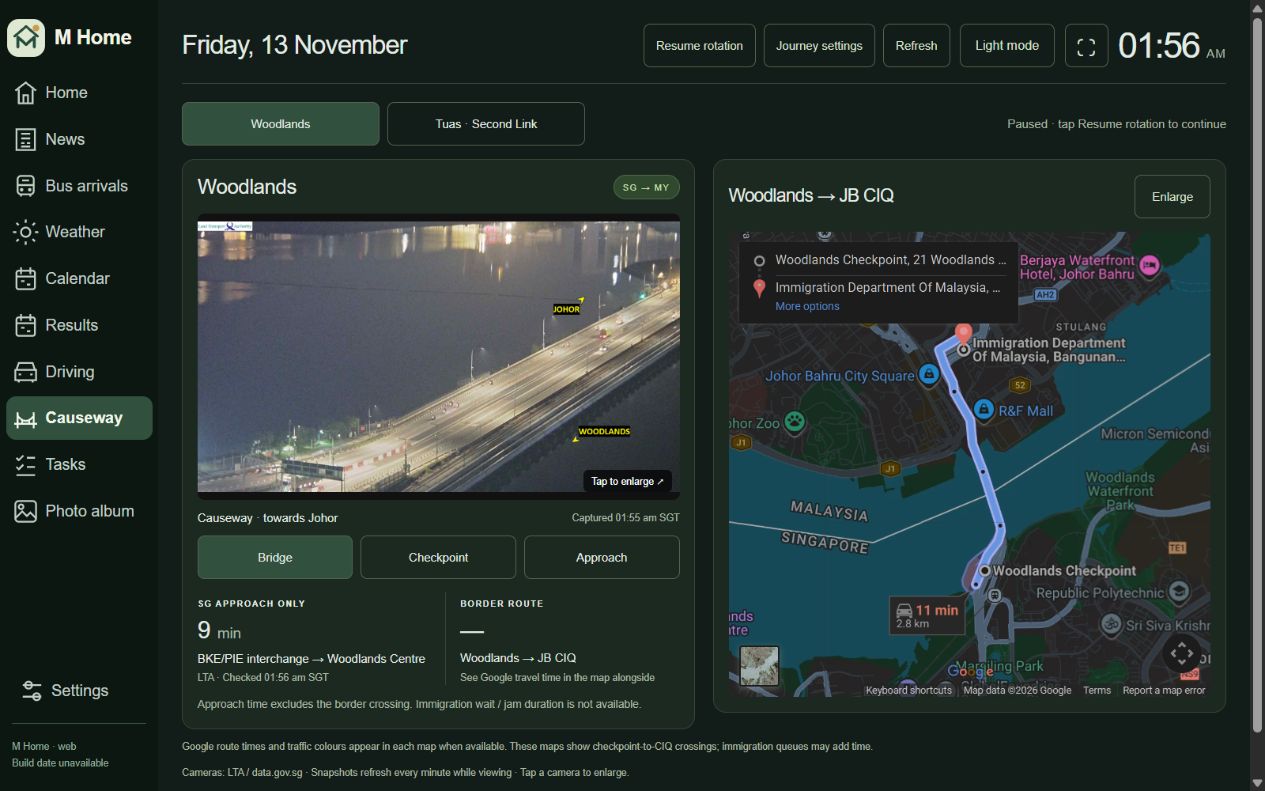
Woodlands and Tuas checkpoints screen on the displayApproach times cover the drive to the checkpoint. Allow extra time for immigration queues.

News

Add the News card to Home or open the full feed for CNA headlines and photos.
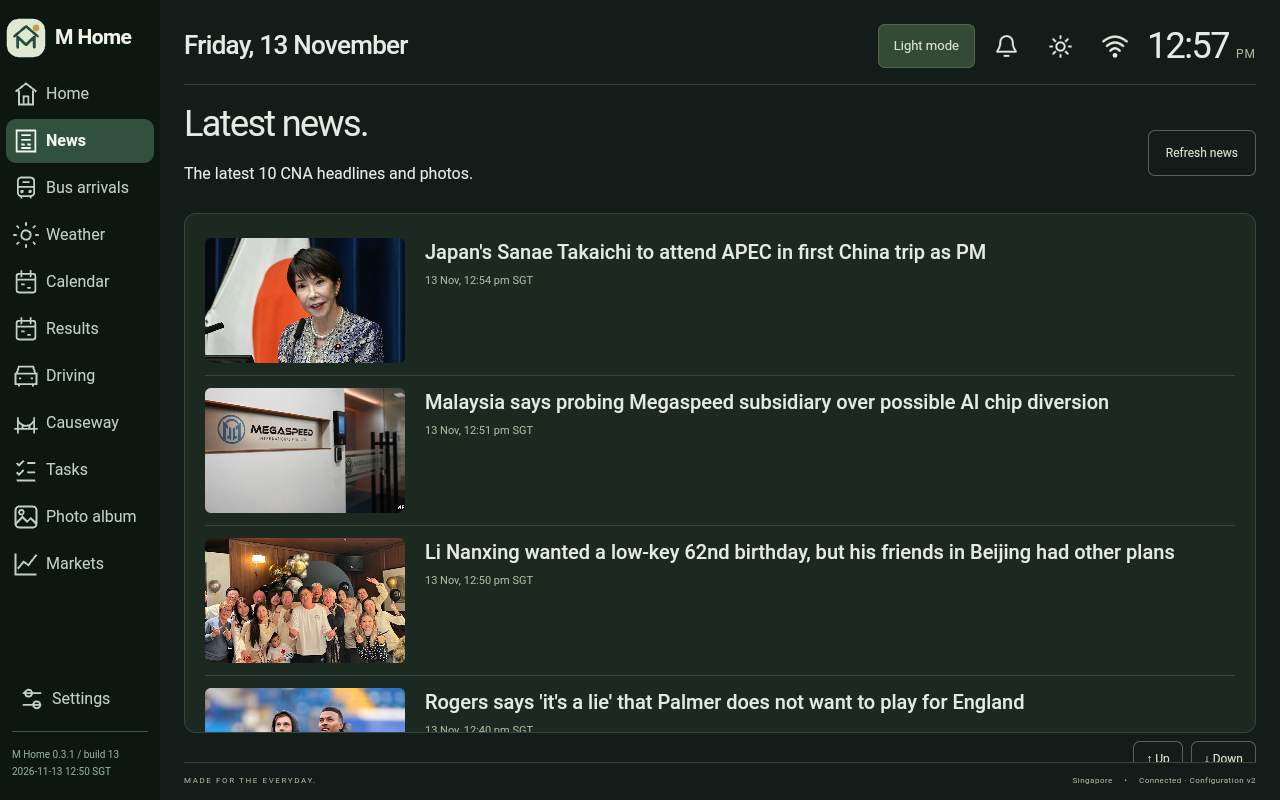
News screen on the displayRequires an internet connection for updated headlines.

Google Calendar

Connect your primary Google Calendar and view events in agenda, week and month views.
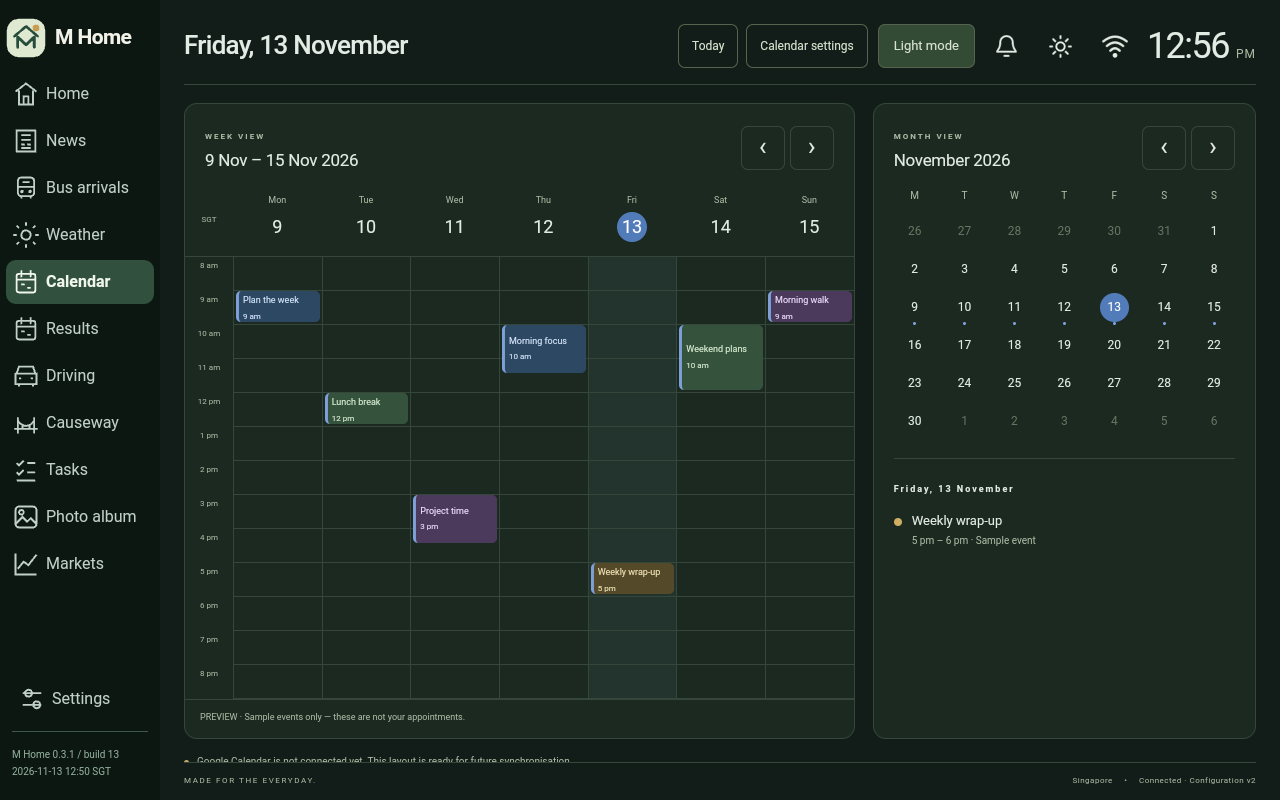
Google Calendar screen on the displayRequires account pairing and Google permission. Edit events in Google Calendar.

Tasks

Add, complete and remove personal to-dos.
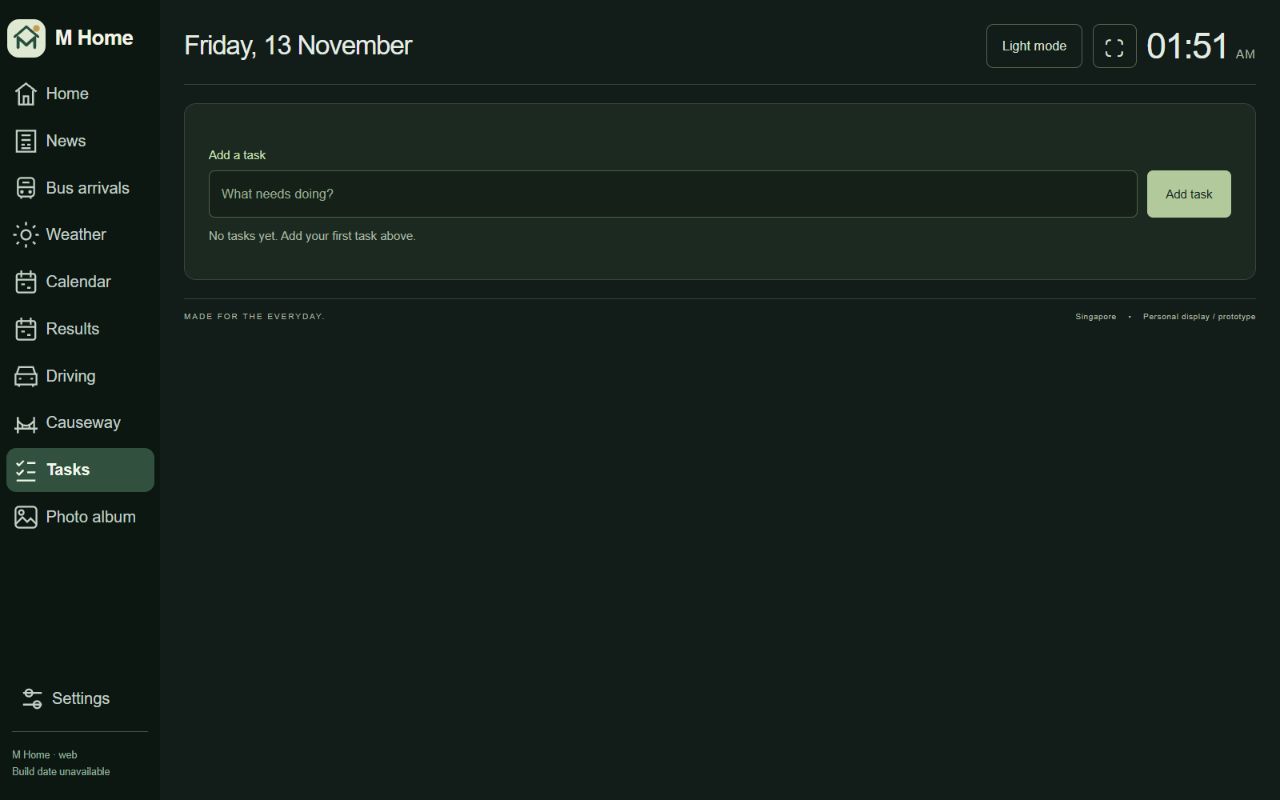
Tasks screen on the displayStored on the display.

Photo album and slideshow

Import photos, organise albums and favourites, and choose slideshow content and timing.
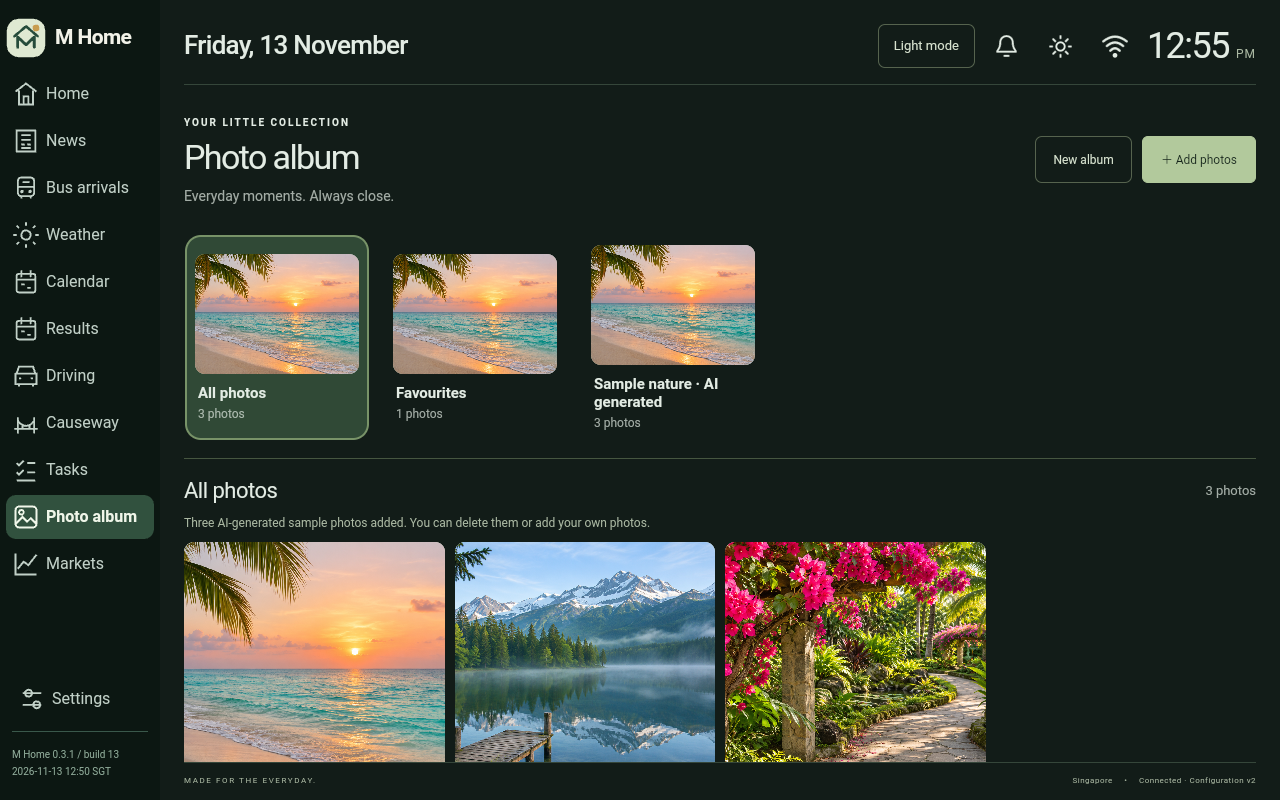
Photo album and slideshow screen on the displayStored on the display. Supported formats include JPEG, PNG and WebP.

Singapore Pools results

View 4D and TOTO draws, winning numbers and prize details. Add Results to Home.
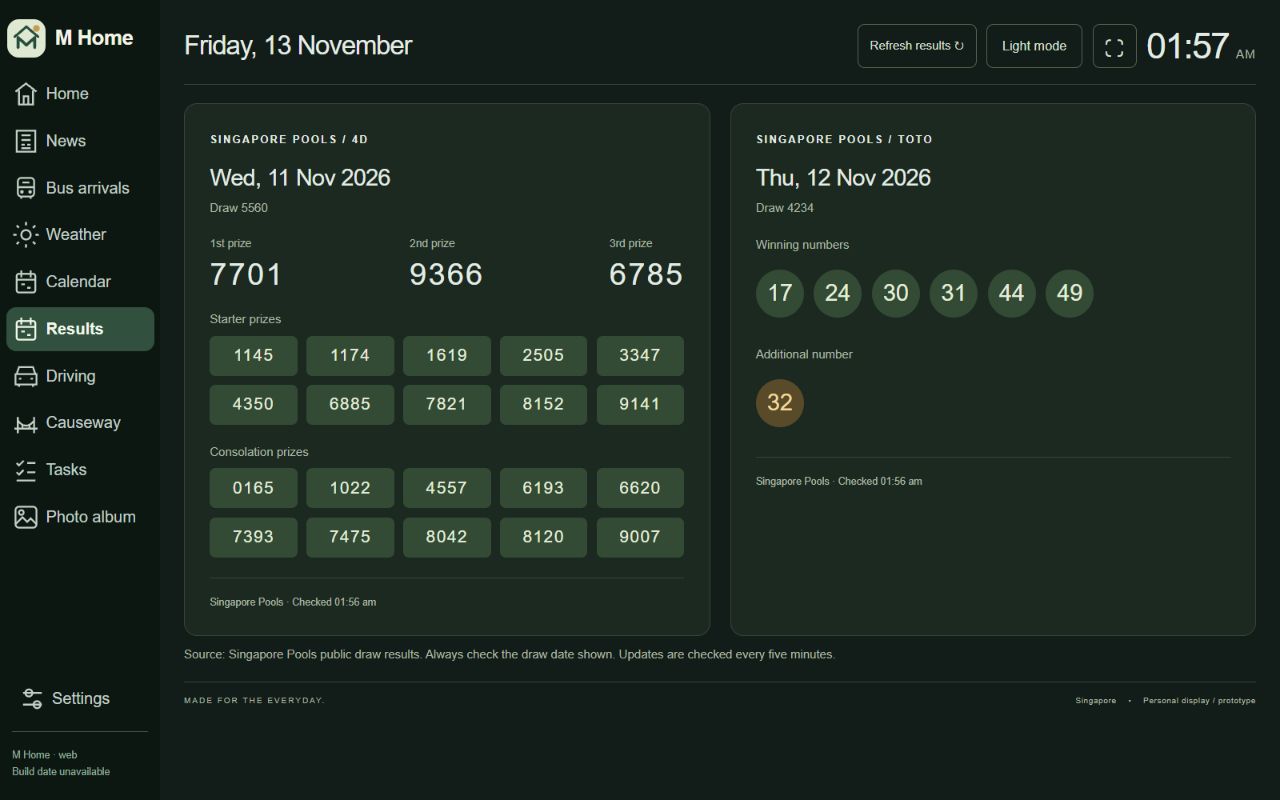
Singapore Pools results screen on the displayRequires an internet connection for updated draws.

Appearance and language

Choose light or dark mode, use a colour preset or set your own colours, and adjust text size. Pick from six interface languages.

On the display. Supported appearance settings can also sync from a linked account.

Display schedule

Set weekly time slots, a time zone and a fallback view. Switch views automatically or set the screen to go dark.

On the display or through linked display settings.

Brightness and night dimming

Adjust screen brightness and use automatic overnight dimming.

Physical Android display.

Family shopping and chores

Manage a shared shopping list, assign chores, set recurrence and track completion.

Requires a linked family account and display for sharing.

School timetable

Choose a school day on the display to see its lessons in order. Switch to the week view to look ahead.

The school timetable on the frame is separate from the recurring activities managed in the companion app.

Kids’ weekly schedule

Set up recurring weekly activities and view the household timetable.

Companion app. Adults manage the schedule.

Budget and expenses

Set a monthly SGD budget, enter expenses or scan a receipt and review the details before saving.

Companion app for adults. Receipt scanning requires the online service.

Phone photo sharing

Pair your phone and send selected photos to the display.

Requires the companion app and both devices on the same Wi-Fi network.

Stocks and crypto

Build a watchlist from available symbols and view quotes and charts. Choose exchange pairs and statistics for the crypto view and Home card.

Quotes depend on the data source. Some CoinMarketCap features require an eligible API key.

Huang Li almanac

Browse the Chinese lunar almanac and add its card to Home.

On the display.

Display pairing and sync

Link your display to your account and manage supported settings and content from your phone or the website.

Requires sign-in and a paired display.
More than information

Not just a screen.
Your favourite people.

Turn your display into a personal photo album. Import your photos, create albums, pick favourites and browse the moments you love.

16 GB and 32 GB device options, with expandable storage via SD card. Import JPEG, PNG and WebP photos. The current browser album keeps its own local library; keep your originals.
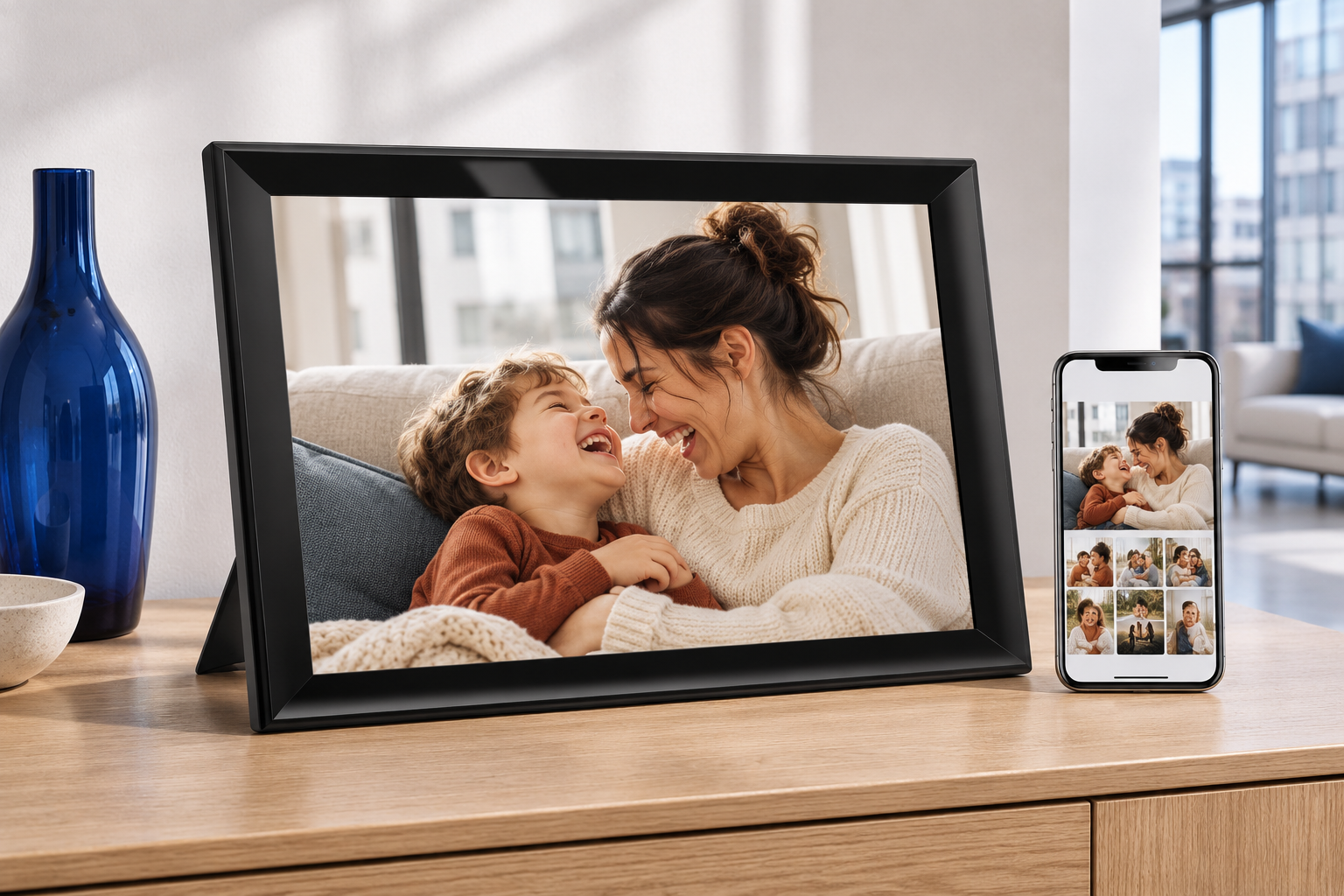
Illustrative tabletop frame showing a family photo

Illustrative photo-frame view · paired phones can send photos over Wi-Fi.

Your home display

Your home.
Your way.

Living room display

Weather area Clementi ›
Favourite bus stop Choose ›
Display settings Adjust ›
Your everyday, connected.

Photos · Calendar · Your display

Phone companion · delivery preview

Companion app

Your display.
At your fingertips.

A companion designed to bring your display closer. Choose your local information, adjust supported display settings and send photos from your phone over the same Wi-Fi network.

The companion app also supports family shopping, chores, weekly schedules and budgeting.

Download on the App Store
Coming soon
Get it on Google Play
Coming soon

For iPhone and Android. Download links will be available after the apps are published.

OurDayView display

A touchscreen home display and photo frame with two internal storage options.

16 GB

S$168

Original S$299 · Save S$131

32 GB

S$188

Hardware verified on the 32 GB sample. The 16 GB model’s hardware is pending confirmation.

Display
1280 × 800 touchscreen with dashboard and photo frame modes
Processor
Rockchip RK3126, quad-core ARM Cortex-A7
Memory
1 GB RAM
Software
Custom OurDayView software built for Android
Storage expansion
External SD card support on both models
Everyday features
Nearby bus arrivals, weather, traffic, news, calendar and tasks
Photos and setup
Transfer photos over local Wi-Fi and manage displays from the companion app
Warranty
3 months included. Add 12 months for S$50.
Concept illustration of the display in photo-frame mode beside a phone
Product concept illustration

Register your interest

OurDayView is currently in pre-launch. Sign in with Google to join the interest list and get an email when ordering opens.

Register interest

A few things to know.

When can I order?

Orders are closed while we collect interest. Register above to hear when ordering opens.

Can I control it from my phone?

The owner web console can configure supported display settings today. The companion app supports secure pairing and photo uploads. The screenshots show a preview of the app.

Are all the features already live?

Live bus arrivals, weather, news, tasks, layout customisation and the local photo album are implemented. Bus arrivals require an internet connection and an available LTA data service; some other travel-time information needs provider activation. Screenshots show the development version.

What are the storage and mounting options?

The device is a touchscreen tablet in a photo frame, with 16 GB and 32 GB storage options and SD card expansion. Dimensions and mounting accessories are being confirmed. Lifestyle images and mounting scenes are illustrative concepts.

Support

Orders and delivery

Find delivery details, warranty support and eligible refunds.

Order support

Display setup

Connect a display to your account and manage paired devices.

Device setup

Privacy and your account

Ask about your data or request permanent deletion of your account and associated data.

Account and data deletion

Release notes

Choose your platform
0.3.29 · More reliable display startup LATEST · 19 NOV 2026
  • The display retries when part of the dashboard fails to load. A problem loading touch feedback no longer holds up the rest of the screen.
0.3.28 · Keep your display connected 19 NOV 2026
  • Displays using the previous OurDayView server address switch to the new service automatically. Your custom server address is preserved.
0.3.23 · Household staples 14 NOV 2026
  • Customize your household staples and tap a staple to add it to the shared shopping list.
0.3.22 · Your family, together 14 NOV 2026
  • Shared shopping lists with quantities and assigned shoppers.
  • Assigned chores with due dates and daily or weekly repeats.
  • Family Overview on Home, with safe syncing and saved-change retry.
  • Choose this display in Family Overview on your phone.
0.3.21 · Photos at your pace 14 NOV 2026
  • Play any album full screen, looping until you stop.
  • Pause, browse previous or next photos, and choose your playback speed.
  • Fit the entire photo or fill the screen. Tap the photo to hide or show controls.
0.3.20 · A menu that makes room 14 NOV 2026
  • Collapse the menu to icons using the button beside Settings; expand it again anytime.
  • Your menu preference is remembered on this display.
  • The footer shows the version and build without a date or time.
  • Includes the larger calendar text and simplified Updated footer.
0.3.19 · A clearer calendar 14 NOV 2026
  • Larger calendar dates, appointment titles and times.
  • More space in the weekly timeline for readable appointments.
  • A simpler Home calendar link and an Updated time in Singapore time.
0.3.18 · Your connected Google Calendar 14 NOV 2026
  • Calendar uses events from the Google account connected to your display.
  • Removed sample appointments, including saved demo preferences.
  • Calendar sync errors are shown clearly instead of an empty agenda.
0.3.17 · Scan or enter a code 14 NOV 2026
  • Link phone / Show QR now includes a six-digit fallback code, valid for five minutes.
  • Link another phone while keeping the display signed in.
  • Clearer account pairing instructions for the OurDayView app.
0.3.16 · Huang Li, a familiar page for every day 14 NOV 2026
  • Huang Li has its own category. Calendar remains your planner.
  • A nostalgic green tear-off design with a large date, lunar date and traditional details.
  • Chinese activities include English meanings, with bilingual festivals, zodiac and directions.
  • Browse dates or return to Today. Almanac calculations work offline.
0.3.15 · Bus locations and nearby stops 13 NOV 2026
  • Updated arrivals use green text without a coloured background.
  • See the next three buses on a zoomable map, their estimated positions and straight-line distances to your stop. Refresh positions anytime.
  • Choose either bus stop on the map: zoom, tap a stop and select Use this stop.
0.3.14 · Photo moments and quiet nights 13 NOV 2026
  • A random full-screen album photo appears every minute for five seconds. Change the timing in Settings.
  • Night dimming defaults to 1% brightness from midnight to 6 a.m. every day, then restores normal brightness.
  • Photo moments pause at night and return to your previous screen afterward.
0.3.13 · Your received photos, visible 13 NOV 2026
  • Photos received from your phone appear in the album after every dashboard startup.
  • The QR panel closes and confirms a successful phone connection automatically.
  • Newly received photos refresh All photos immediately.
0.3.12 · Link your phone once 13 NOV 2026
  • Find Link phone / Show QR at the top of Settings, even when already signed in.
  • The updated companion remembers your frame for encrypted photo sending on the same Wi-Fi.
  • Close the QR after linking; revoke linked phones from the QR panel anytime.
0.3.11 · Your photo QR in Settings 13 NOV 2026
  • Open Show photo QR code directly from your connected account panel or Device settings.
  • Your account stays linked while you scan the separate Wi-Fi photo QR.
0.3.10 · Secure photos on your Wi-Fi 13 NOV 2026
  • Scan once, select multiple photos on your phone, and send over the same Wi-Fi.
  • Encrypted transfers confirm each photo saved to the frame’s internal storage.
  • See available photo storage and safely retry interrupted sends.
0.3.9 · Photos from your phone 13 NOV 2026
  • Open Photo album → Receive a photo to show a temporary transfer QR.
  • On the same Wi-Fi, choose a photo in the companion app and scan the code.
  • Received photos are saved in All photos. Account pairing remains available.
0.3.8 · A clearer connection 13 NOV 2026
  • A refreshed account panel includes a mobile pairing QR, six-digit code and expiry countdown.
  • My devices shows pending requests immediately, then live connection and sync status.
  • Clear confirmation and connected states keep every pairing step visible.
0.3.7 · Your connected account 13 NOV 2026
  • Pair from Settings using a six-digit code and confirm the account on your display.
  • Homepage, news and display preferences sync from your account.
  • Encrypted preferences, secure device credentials and sign-out cleanup.
0.3.6 · Clearer market cards 13 NOV 2026
  • Company and asset names appear below their symbols.
  • Larger percentage changes are easier to read at a glance.
0.3.5 · Compact market watch 13 NOV 2026
  • Smaller cards show more prices and charts at once.
  • Falling prices, percentages and charts are red; rising prices are green.
  • Tap Customize in the top bar to choose symbols and chart period.
0.3.4 · Bitcoin and free market prices 13 NOV 2026
  • Select Bitcoin (BTC/USD), US and Singapore stocks, ETFs and Ethereum in Markets.
  • Free market prices include charts, source and quote timestamps.
  • Prices refresh every five minutes and may be delayed by the exchange.
0.3.3 · A new update experience 13 NOV 2026
  • A branded OurDayView panel follows your light or dark theme.
  • See download progress, verification and clear Install update / Later buttons.
  • Android still handles the final installation confirmation.
0.3.2 · Bus locations and live maps 13 NOV 2026
  • Show two bus locations side by side, with separate service filters.
  • Arrivals stay visible during background refresh; changed values turn green.
  • Tap a bus number for its route, latest estimated positions and arrival times.
  • Weather is now an icon in the top toolbar, beside the icon-only theme button.
0.2.9 · Display and device controls 13 NOV 2026
  • Adjust brightness beside Wi-Fi. Restart or shut down from Settings.
  • Wi-Fi follows your theme and compatible networks connect inside the dialog.
  • Returning from Wi-Fi preserves the dashboard instead of rebuilding it.
0.2.8 · Device notification bell 13 NOV 2026
  • Tap the bell beside Wi-Fi to see software update notifications and check for updates.
  • A dot marks a new update. Automatic checks run once a day while connected.
0.2.7 · Easier navigation and updates 13 NOV 2026
  • The top menu stays visible while Home and News scroll.
  • Device controls are now inside Settings.
  • Check for updates and see the latest update status here.
0.2.6 · Live bus arrivals 13 NOV 2026
  • Live Singapore bus arrivals connect automatically through the OurDayView server.
  • Includes the latest dashboard and language improvements.
0.2.3 · Compact release notes 13 NOV 2026
  • Tap the version and build information at the bottom left to see major changes and fixes.
  • Close this window to return to exactly where you were.
0.2.1 · Easier settings and app updates 13 NOV 2026
  • Settings stays at the bottom of the sidebar, with the app version, build number and build date underneath.
  • Check for app updates from Device settings. Updates preserve your saved layout and preferences.
  • The server controls manual or automatic update delivery. This frame asks you to confirm installation.
A more useful daily display RECENT IMPROVEMENTS
  • Weather forecasts, news, checkpoint cameras and results were restored by a server fix.
  • Rearrange Home cards and adjust their heights. Cards fill available column space.
  • Wi-Fi settings and phone QR setup have clearer return controls.
  • The clock-side Wi-Fi icon shows connection status and opens Wi-Fi settings.

Live arrivals require an internet connection and provider availability.

Android companion app

No release notes have been published here yet.

iOS companion app

No release notes have been published here yet.